Access Ports
To start using the range of on-demand connectivity services available on the Console Connect platform you need an Access Port. This is the physical point of connection between your network and ours.
Once your company is verified on Console Connect you can order an Access Port. They come in two types:
- Data Centre Port – can be ordered from any of our listed data centre locations.
- Edge Port – brings Console Connect directly to your office building.
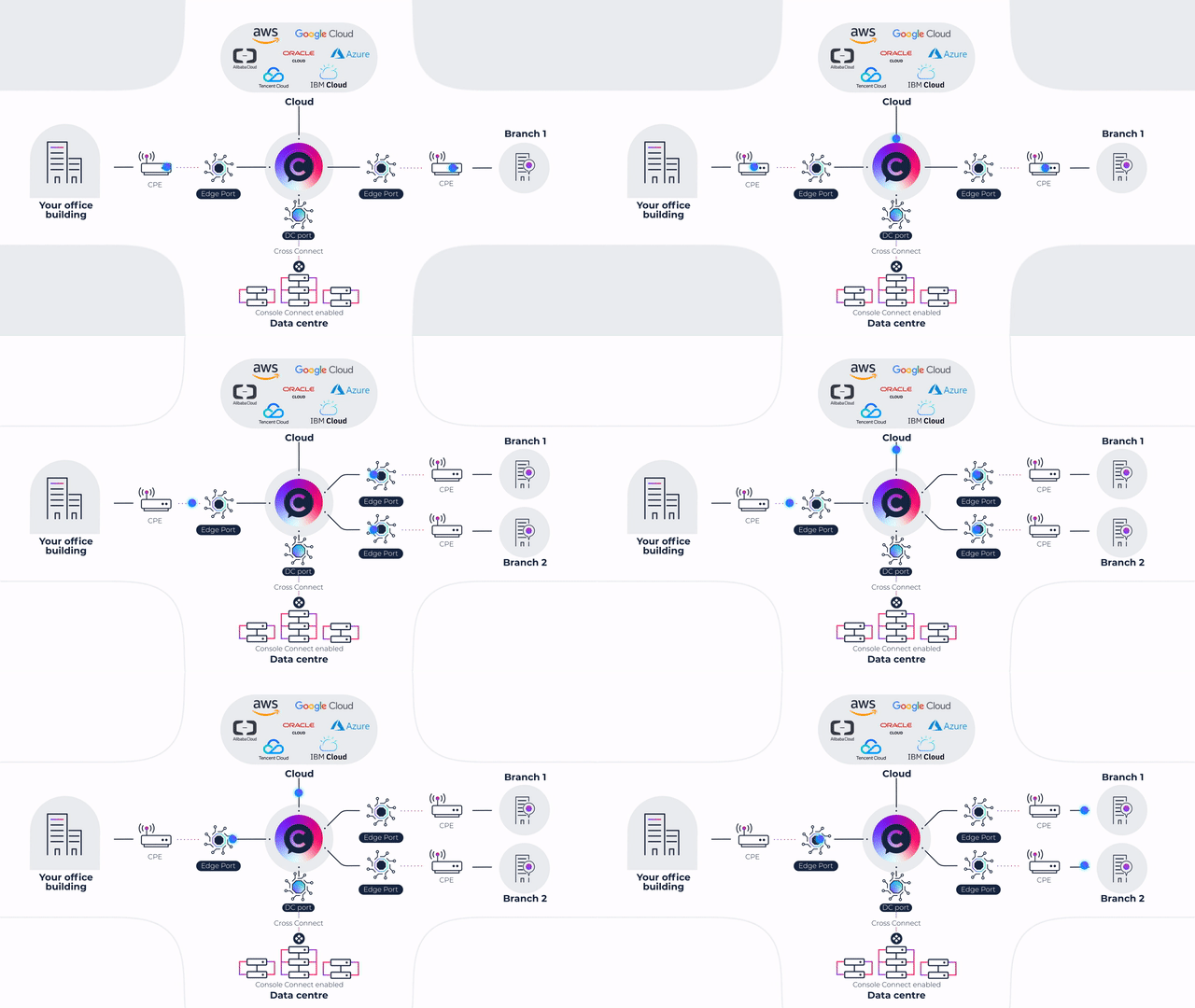
Data Centre Port
How to order a Data Centre Port
- Select the Network menu > select Ports > select Add new.
- Select a Data centre.
- Configure your port:
a. Name your port.
b. Select a port speed.
c. Some ports may include a free or optional cross-connect. - Choose your payment method.
- Agree to the terms and conditions.
- Click Order port.
Edge Port
How to order an Edge Port
- Select the Dashboard menu > select Add new service > select Edge Port > select Order.
- Select a Country and input your building address.
- Review requested address, select Bandwidth and Duration.
- Review proposed solutions and select your preferred option. Take note of the estimated time for the Edge Port to be activated and ready for on-demand use (varies by location, but usually within 4-8 weeks).
- Select a Data centre.
- Collect the following details about the installation site:
a. Demarcation point – please include details such as floor, area, suite, rack, cabinet, etc.
b. Building site access – please provide instructions as to how the technicians can request access and available access times. - At this point you can save your order as a draft and return to complete in the future.
- Provide site contact details, site physical attributes, review and confirm solution and pricing.
- Name your port and agree to the terms and conditions. Click Order Edge Port.
- After the order is submitted, the Edge Port order will show in your dashboard as Processing.
- The status will proceed to Site survey, Installation and finally Active as it progresses through each stage of fulfilment.
- When your port is active, you will receive confirmation via email.
- Start connecting.
If a user does save the Edge Port as a draft order, the status will be Draft on their dashboard. They can return to the order at any time by clicking on it to resume the order. More information about Edge Port statuses can be found in the need section.
Edge Port statuses
- Processing: Your order details are being checked. If we need clarification we will get in touch with you. If we have all the details we need then we will submit your order to our vendor partner.
- Site survey: Our vendor partner has accepted your order. A site survey will now be arranged.
- Installation: The site survey is now complete. We will proceed to deliver and activate your Edge Port connection.
- Active: Your Edge Port is now active. You can now create connections that use it.
Data centres
Please see our list of Console Connect enabled data centre locations here.
If your data centre isn’t listed, there is a good chance it is on our roadmap. Please get in touch to discuss.
Billing information
Ports have a minimum contract term of 12 months. At the end of the 12 month period, ports will automatically renew on a month-to-month basis.
Click here for more information on pricing and billing.
Useful links
These resources provide more information on Access Ports: