Update password
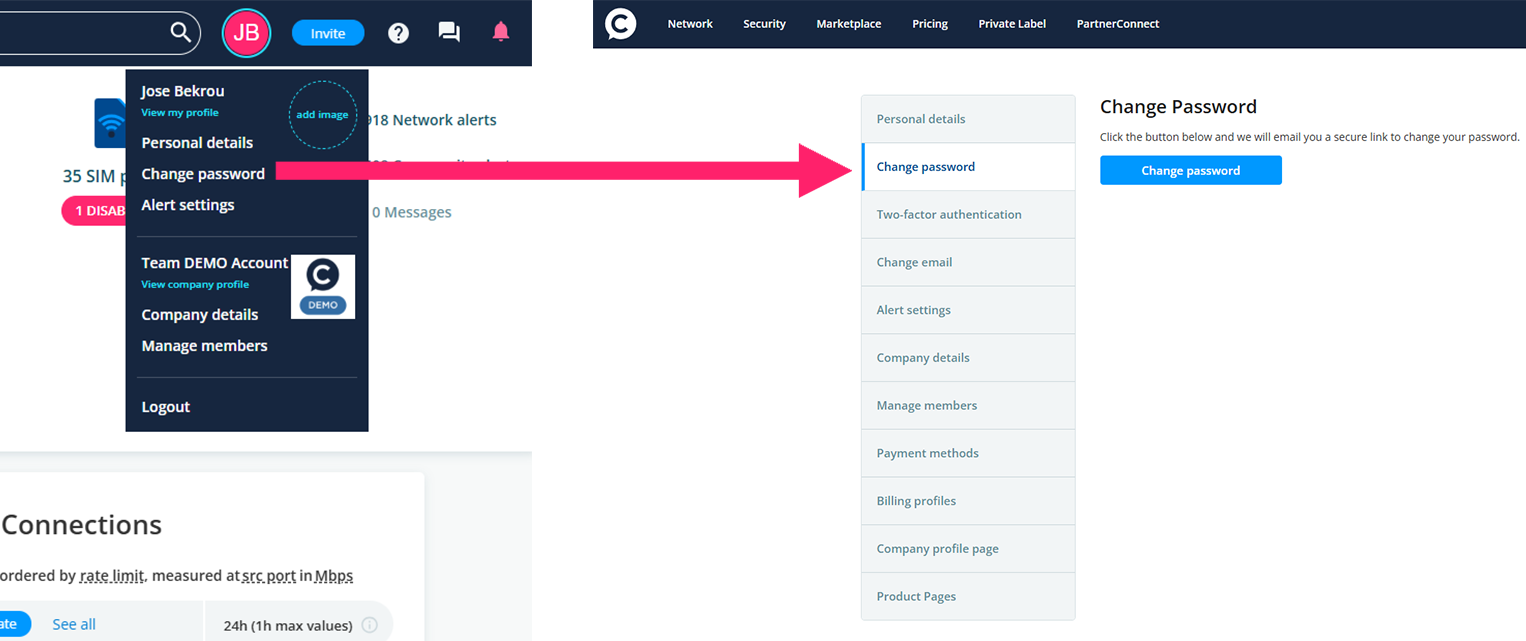
To access the settings menu, click on your profile image (or placeholder) next to the search box in the top right corner of the page.
Click Change password and follow the step-by-step instructions.
Update email address
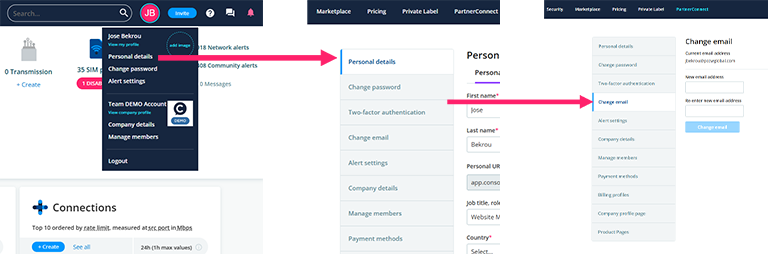
Click on your profile image (or placeholder) next to the search box in the top right corner to access the settings menu.
Click Personal details then click Change email in the left menu.
Your company
Account administrators are the primary custodian of the company’s account, which is assigned at the time of verification. There can only be one Account Administrator for a company, however, they can delegate administration functions to other company members, such as network administration and content management.
How do I join a company?
- Click on your profile image (or placeholder) to access the settings menu.
- Select Create or join a company from the menu on the left.
- Start typing and when you see the name of your company, select it.
- You will then see an Ask to join button, click it.
- Your request to join the company will go to the Account Administrator and User Admin members of that company. You should only request to join a company that you are currently employed by.
How do I update my company profile?
The Account Administrator and Content Admin members may change information on the company’s profile page.
- Click on your profile image (or placeholder) to access the settings menu.
- Select View company profile from the menu on the left.
- Select Edit profile.
Who can see my company?
By default, your company is visible to anyone logged into Console Connect. You can request to change this by contacting [email protected].
What does it mean to be visible on the Console Connect platform?
People and companies are publicly visible on the Console Connect platform. This means people can view profiles, articles and posts of both individuals and companies without logging in.
Network admin members of verified companies will be able to see the metros in which you have ports (but not specific details, like data centre or port names) as this information is necessary for making connections.
Other than the metro (city name) we will never expose specific details about your network, including port names, data centre locations or your available and/or allocated bandwidth.
Roles and permissions
Roles can be used to control what your users can access and manage within your Console Connect account.
Initial sign up and account setup
When you sign up to Console Connect, you start with a Basic User account. This lets you explore the Console Connect ecosystem and pricing.
When you setup a verified company, you automatically become the Company Administrator (Keyholder). The Company Administrator has full access to the company’s orders and services, users and content.
| Basic User | Account Admin (Keyholder) | |
|---|---|---|
| Explore ecosystem & pricing |  | |
| Create or join a company | | |
| Order & manage services | | |
| Create & manage service keys | | |
| Create & manage support tickets | | |
| Manage company members | | |
| Edit company & product profiles | |
Company roles
Everyone invited to a company is considered a Company Member. You can give them a higher level of access depending on what they need to do.
Network access permissions
Company Member: Basic company membership. Can explore the ecosystem and pricing, but can not access or manage your company’s services.
Network Viewer: Can view your company’s services and service keys, plus create and manage support tickets.
Network Admin: Can view, order and manage your company’s services and service keys, plus create and manage support tickets.
| Company Member | Network Viewer | Network Admin | |
|---|---|---|---|
| Explore ecosystem & pricing | | | |
| View service | | | |
| Order & manage services | | ||
| View service keys | | | |
| Create & manage service keys | | ||
| Create & manage support tickets | | |
Administrative permissions
You can give any company member additional administrative permissions on top of their network access level. A user can have either or both:
User Admin: Can manage company membership and user roles.
Content Admin: Can edit your company’s public company and product profile pages.
| User Admin | Content Admin | |
|---|---|---|
| Manage company members | | |
| Edit company & product profiles | |
Member management
How do I assign and change roles for company members?
The Account Administrator or User Admin members may change roles of company members by visiting the company’s profile page, selecting Edit Profile, then Company members.
How do I remove a member from my company?
The Account Administrator or User Admin members may change roles of company members by visiting the company’s profile page, selecting Edit Profile, then Company members. Select the check box to the left of the member(s) to delete, then select Remove member, followed by Apply.
I don't have any admin rights on Console Connect but need more access?
You can request extra permissions from the Account Administrator or a User Admin member in your company. You can find out who these people are by going to your company profile page and clicking the Members tab.